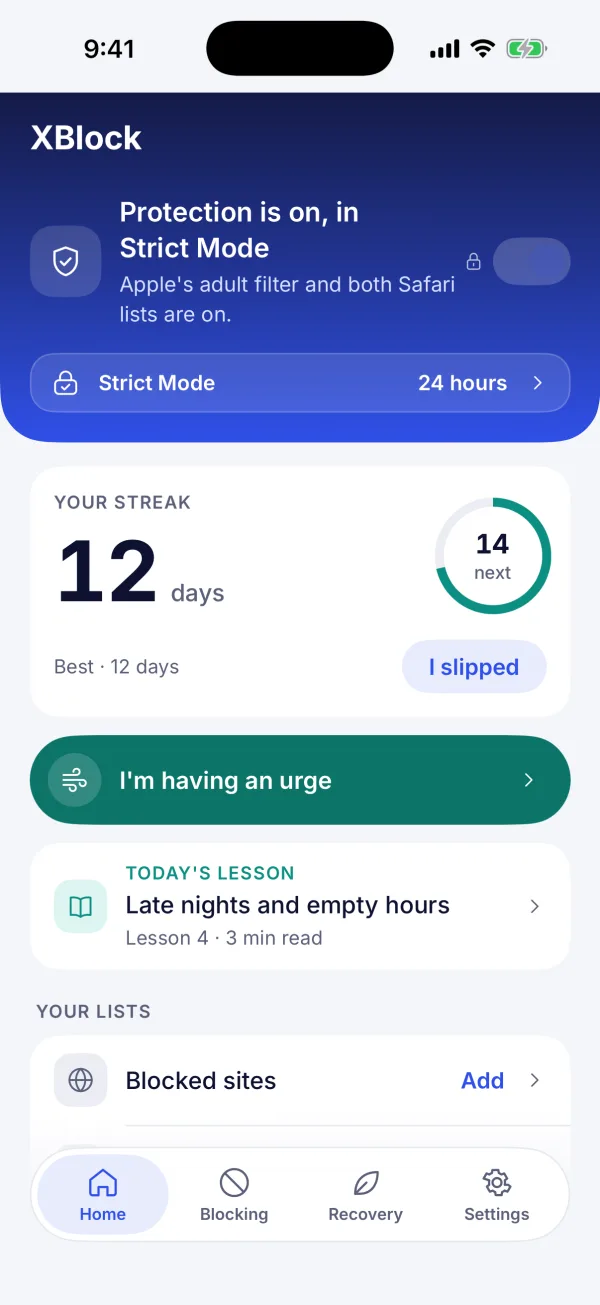
What it blocks
It blocks the content, not your phone.
Turn it on once. XBlock checks what opens, right on your phone, and quietly blocks what you asked it to.
Adult sites, in the browsers you use
Open a blocked page and XBlock swaps it for a calm block screen. It never shows what matched, so it’s safe to glance at anywhere.
- Over 250,000 adult sites, plus pages whose address or title carries adult words
- Chrome, Samsung Internet, Firefox, Edge, Brave, Opera and more, Incognito included
- A browser XBlock can’t read stays closed while protection is on
- On iPhone: Apple’s own adult-content filter plus XBlock’s Safari lists
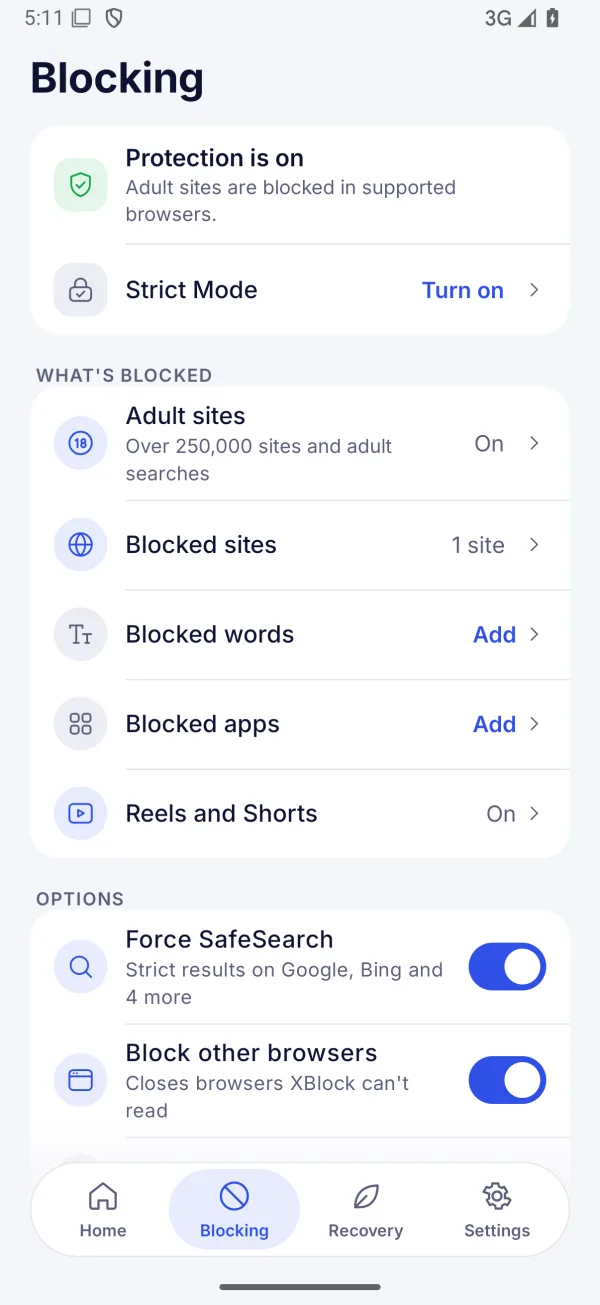
SafeSearch, always on Android
Strict results on Google, Bing, DuckDuckGo, Yahoo, Brave and Ecosia, and searches in the Google app are checked too.
Reels and Shorts Android
Instagram Reels, YouTube Shorts, Facebook Reels and Snapchat Spotlight, plus adult searches in YouTube and Instagram. Switch off any.
Apps you choose
Block a whole app, like a feed you lose hours to or an app you’d rather not open.
Your own words
Add the words that trip you up. Pages and searches that contain them won’t open. On iPhone, in Safari.
Your own lists
Block any site you choose. Blocked by mistake? Allow it, and tell us so we can fix the list.
A filter for other apps
A family DNS filter reaches outside the browser too. It’s an extra layer, best effort.
Make turning it off a deliberate step
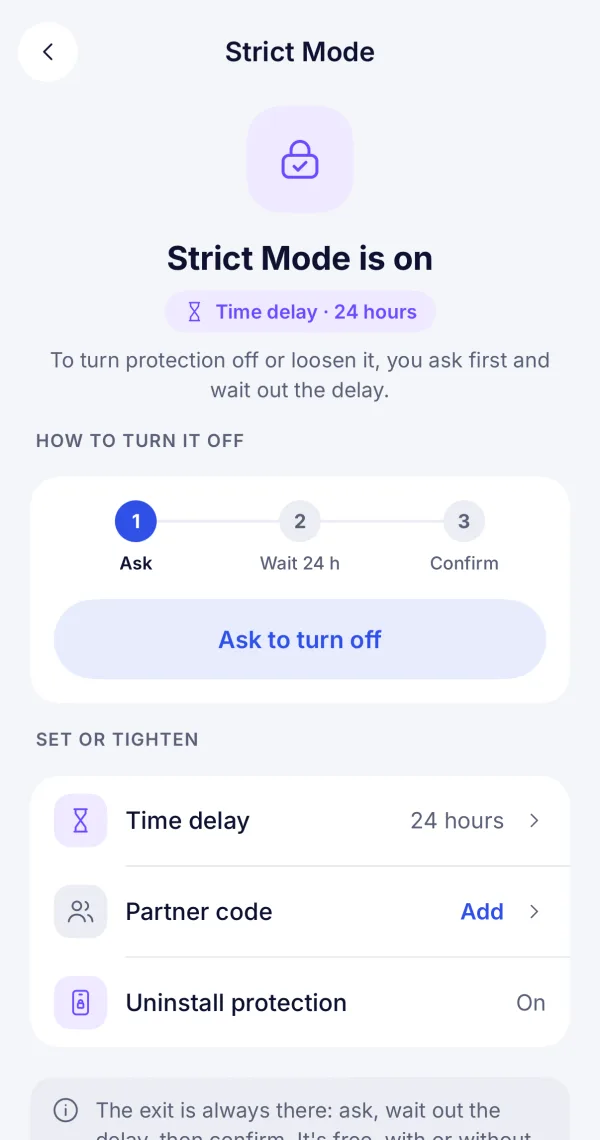
Decide in a calm moment how a hard one goes. Strict Mode puts a wait between you and the off switch. It’s optional, and the way out is always on screen.
- 1Ask
- 2Wait it out
- 3Confirm
Recovery tools · 18+
Help for the hard moments
If you want to quit or cut down, XBlock adds a few quiet tools. No shame, and no tricks to keep you hooked. A slip is information, not failure.
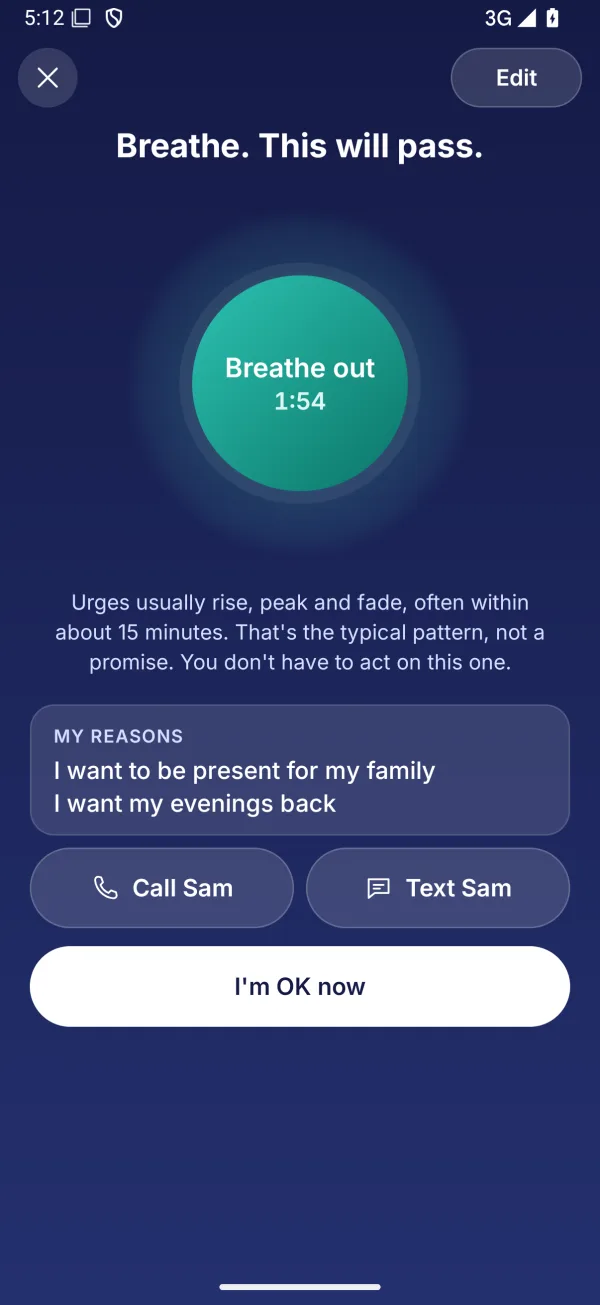
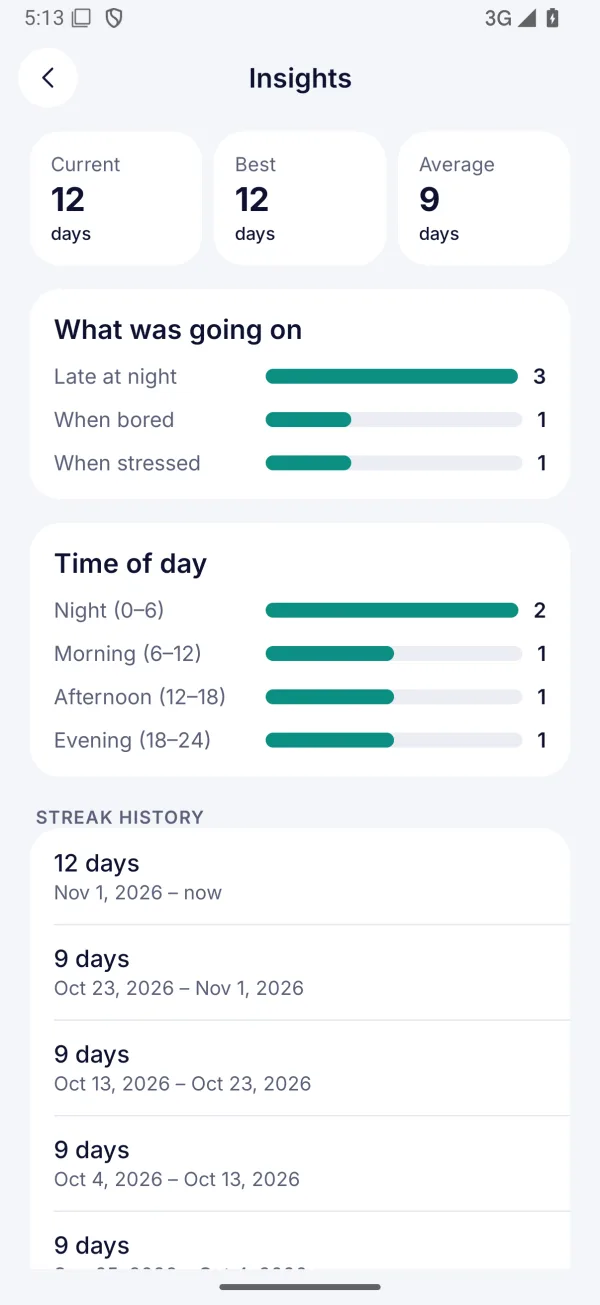
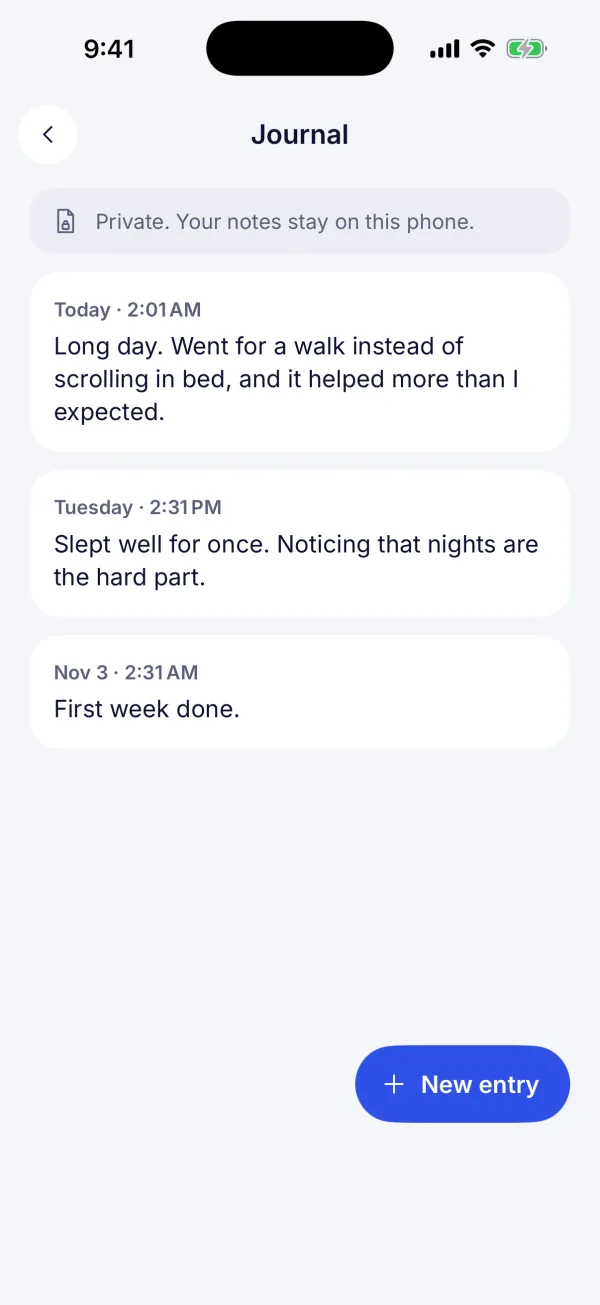
The lessons are general self-help, not medical advice. If you’re struggling, a doctor or counsellor can help. Recovery tools are for adults; under-18s get blocking only.
Private by design
Nothing about your browsing leaves your phone.
What you visit, search and see is checked on the phone and never sent anywhere. XBlock needs no account, so there’s nothing about you to keep.
This website has no cookies, trackers or analytics either.No account
No sign-up, no email, no phone number.
Checked on the phone
Sites and searches are checked on the phone itself, and never kept.
No history, no screenshots
XBlock keeps no record of where you went and never captures your screen.
No reports to anyone
Not to us, and not to a partner. A partner holds a code, nothing more.
How it works
Set up in about two minutes
Three steps, once. Then it runs quietly in the background.
- 1
Say what you want
Five short questions, then a choice: block only, or block and get help quitting. Your answers stay on your phone.
- 2
Turn on protection
On Android, switch on XBlock’s Accessibility service; XBlock shows what it reads and asks first. On iPhone, it walks you through Apple’s filter and the Safari lists, in the right order.
- 3
Add Strict Mode, if you like
Pick a wait, or a person to hold the code. Or skip it, and add it whenever you’re ready.
FAQ
Questions people ask
Can anyone see what I browse?
No. XBlock checks web addresses and searches on your phone. It keeps no history, takes no screenshots and never sends what you visit to us or to anyone else. There’s no account, so there’s nothing to sign in to.
Why does XBlock use Accessibility on Android?
It’s how XBlock reads the address and page title in supported browsers, which app is open, Reels, Shorts and in-app search, and, while Strict Mode is on, the titles of Settings pages that would switch it off. It uses this only to block what you chose and to turn on SafeSearch. It never stores or sends what it reads, and it asks for your consent first.
How do I turn protection off?
Without Strict Mode, switch it off in the app. With Strict Mode on, tap Ask to turn off, wait out the delay you chose, then confirm, or enter the code your partner holds. The wait always works. We can’t turn Strict Mode off for you.
A normal site is blocked. What can I do?
Add it to your allowed sites, and use Report a wrongly blocked site so we can fix the list for everyone. The report is an email you can read before you send it.
Protection keeps turning off on Android.
Android switches Accessibility services off when an app is force-stopped, and some phones stop apps to save battery. Open XBlock: Home shows what’s off and how to fix it. Allow XBlock in battery settings, and on Xiaomi, Huawei, Oppo, Vivo and Samsung phones also let it start automatically.
Is XBlock on iPhone?
Coming soon. On iPhone, XBlock uses Apple’s own adult-content filter plus its own Safari lists. One honest note: anyone can remove an app’s Screen Time access with Face ID, and no App Store app can prevent that. For a lock that holds, someone you trust sets your Screen Time passcode, and XBlock walks you both through it.
Is XBlock for under-18s?
Blocking works for everyone. The recovery tools are written for adults, so they stay hidden if you tell XBlock you’re under 18.
Start with protection. Add the rest when you’re ready.
Blocking takes about two minutes to turn on. Strict Mode and the recovery tools are there whenever you want them.